
Winners Studio, the content desk
Winners Studio is where the team's AI-made short videos live from the moment they're made until they're posted on TikTok, YouTube Shorts, Instagram Reels, Facebook Reels and X. Version 2 adds a redesigned dashboard and a workflow for the ads manager to request ad creatives cut from that content.
The Desk: everything in motion on one screen
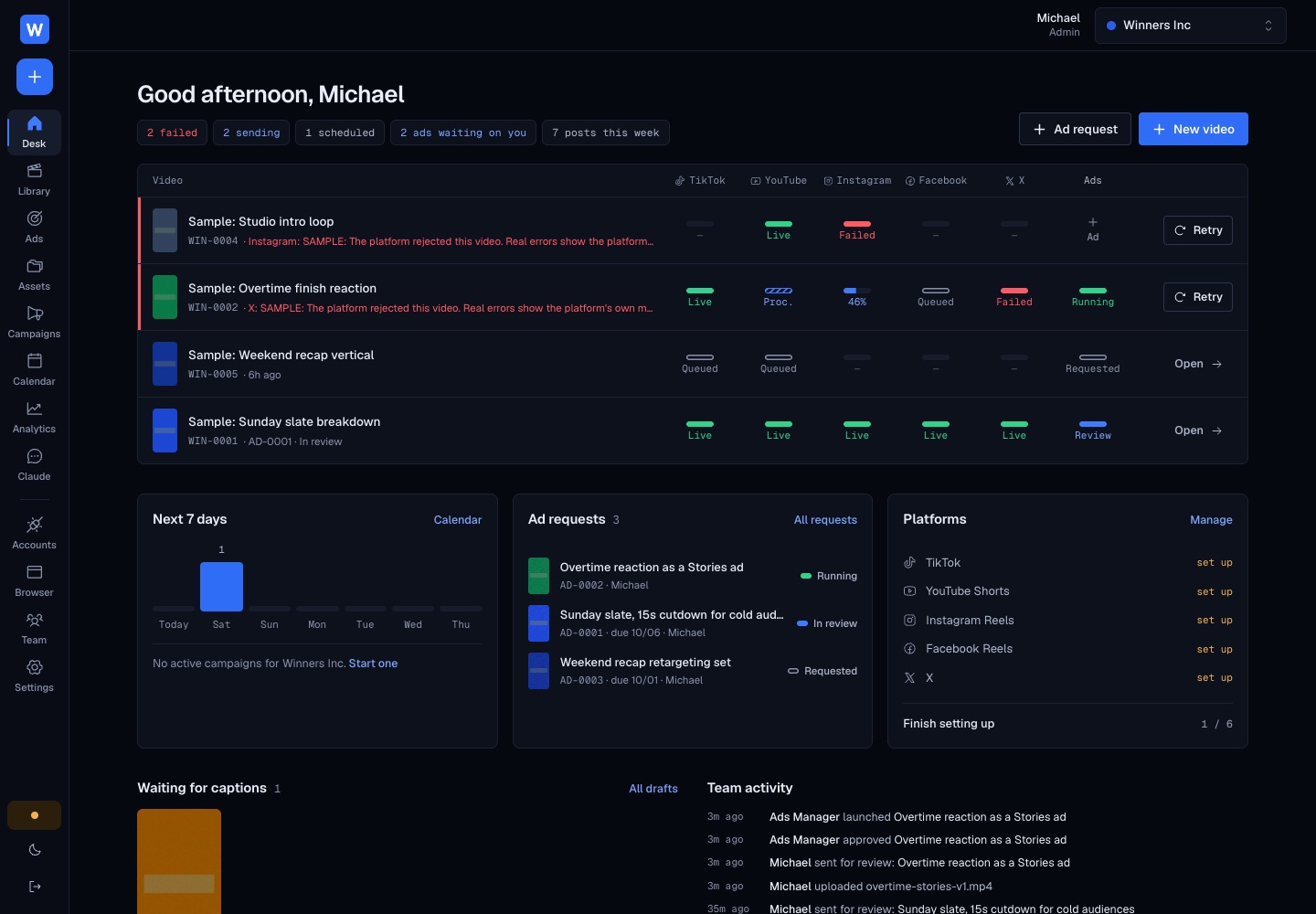
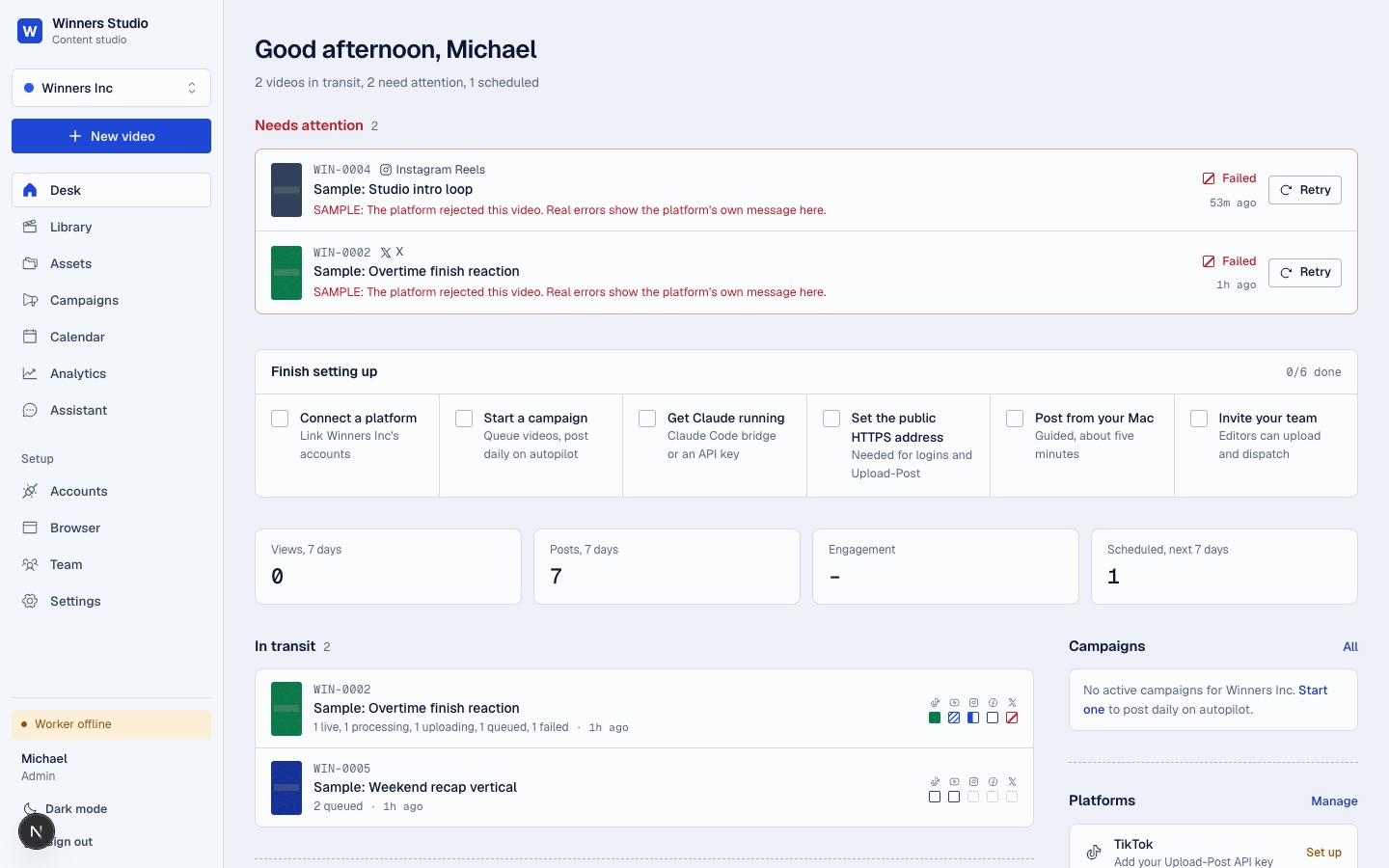
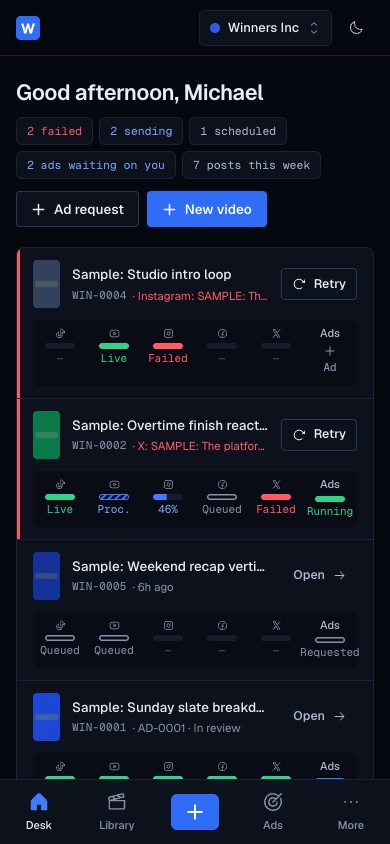
Each row is a video. The first five columns are the platforms, and the last is the new Ads column. A failed post gets a red edge and a Retry button in its row, with the platform's own error message beside the title. Below the board are the next seven days of scheduled posts, open ad requests, and which platforms are connected.
What the team can do today
Make
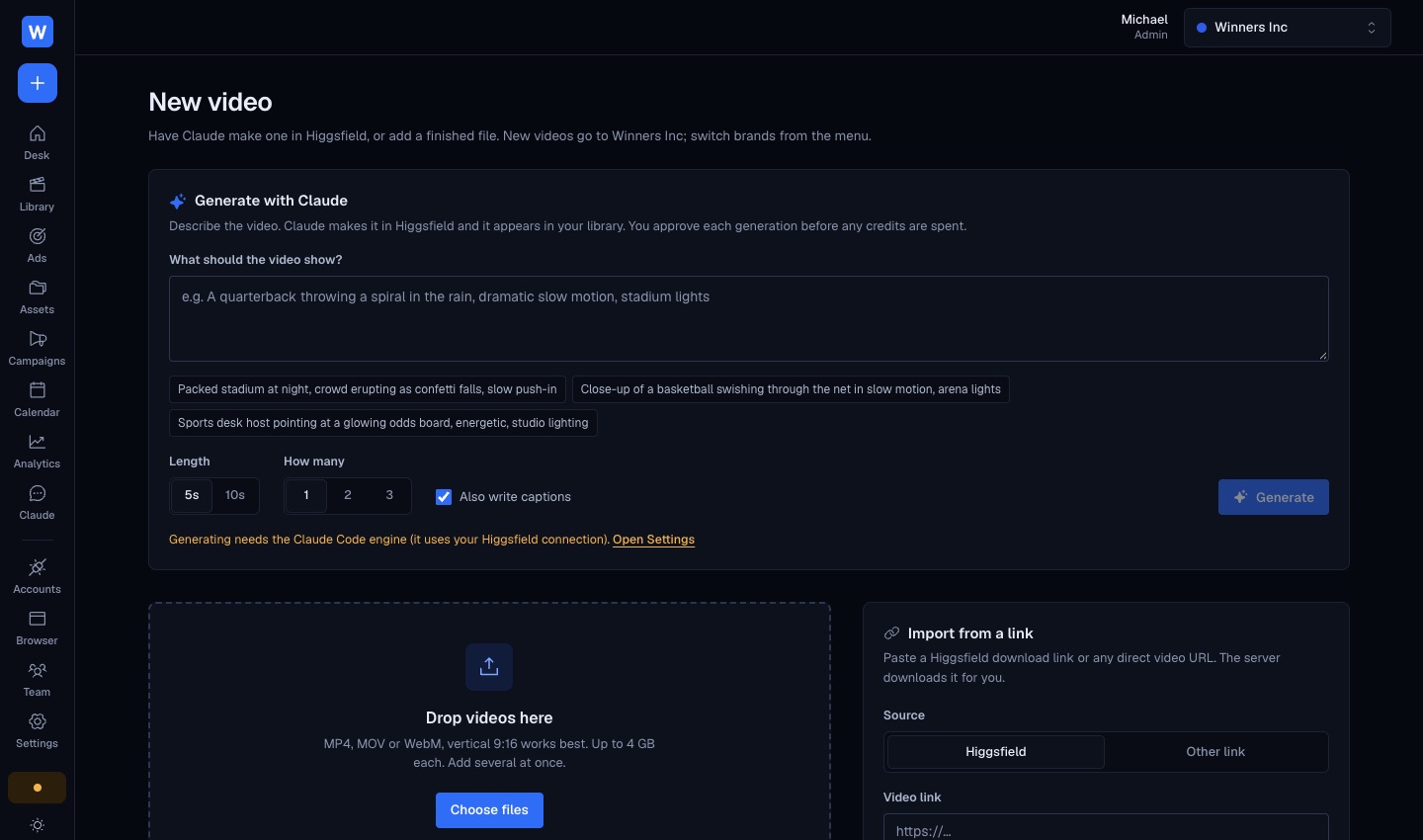
- Describe a video and have Claude generate it in Higgsfield, with approval before any credits are spent
- Upload finished files up to 4 GB each, several at once, from a phone or a desktop
- Paste a Higgsfield or direct link and the server downloads it
- Keep the raw files behind each video (stills, voice takes, music, scripts) in Assets
Caption and post
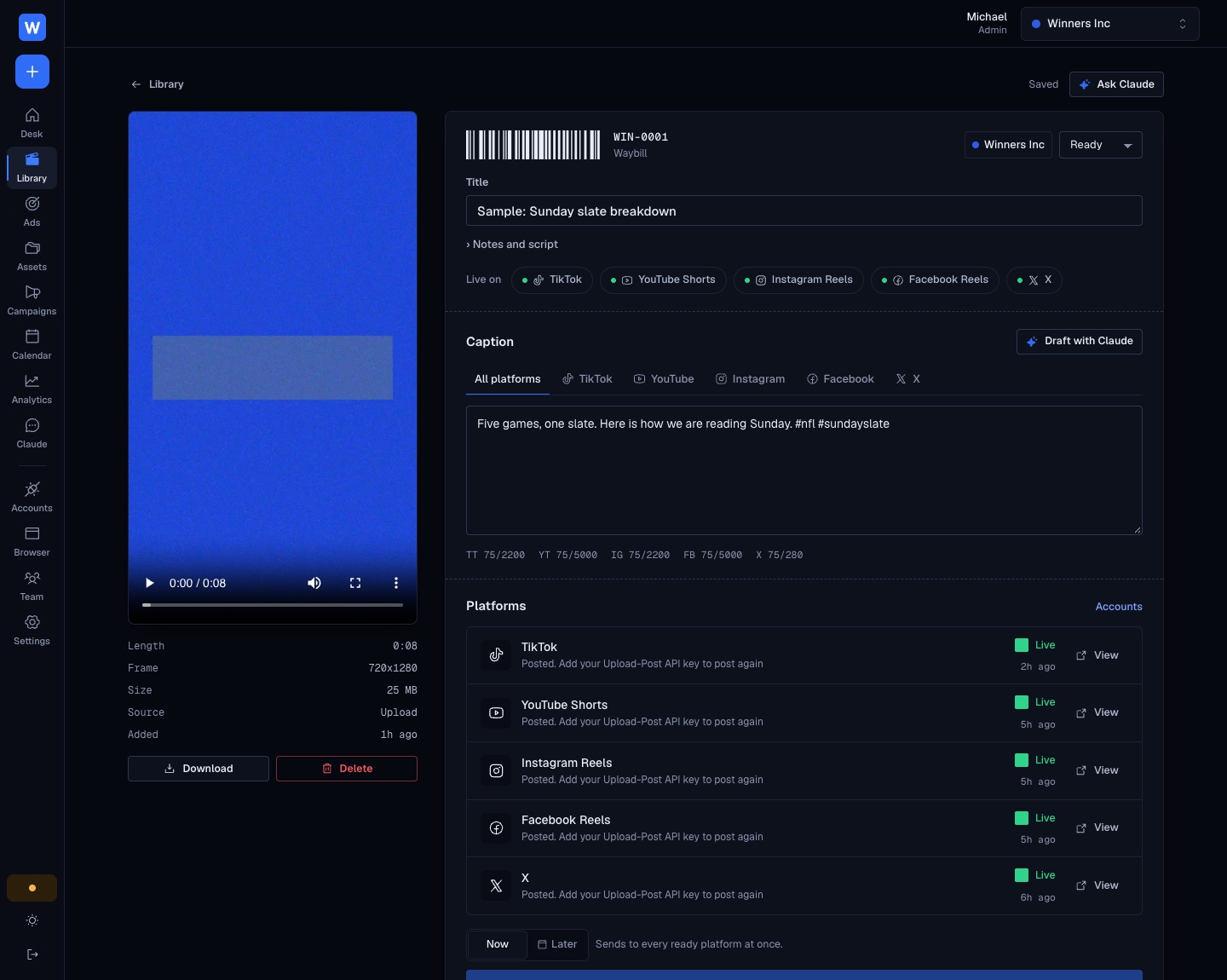
- One caption for every platform, or a custom one per platform, with each platform's character limit counted live
- Draft captions with Claude in the brand voice
- Dispatch to one platform, or to all five with one button
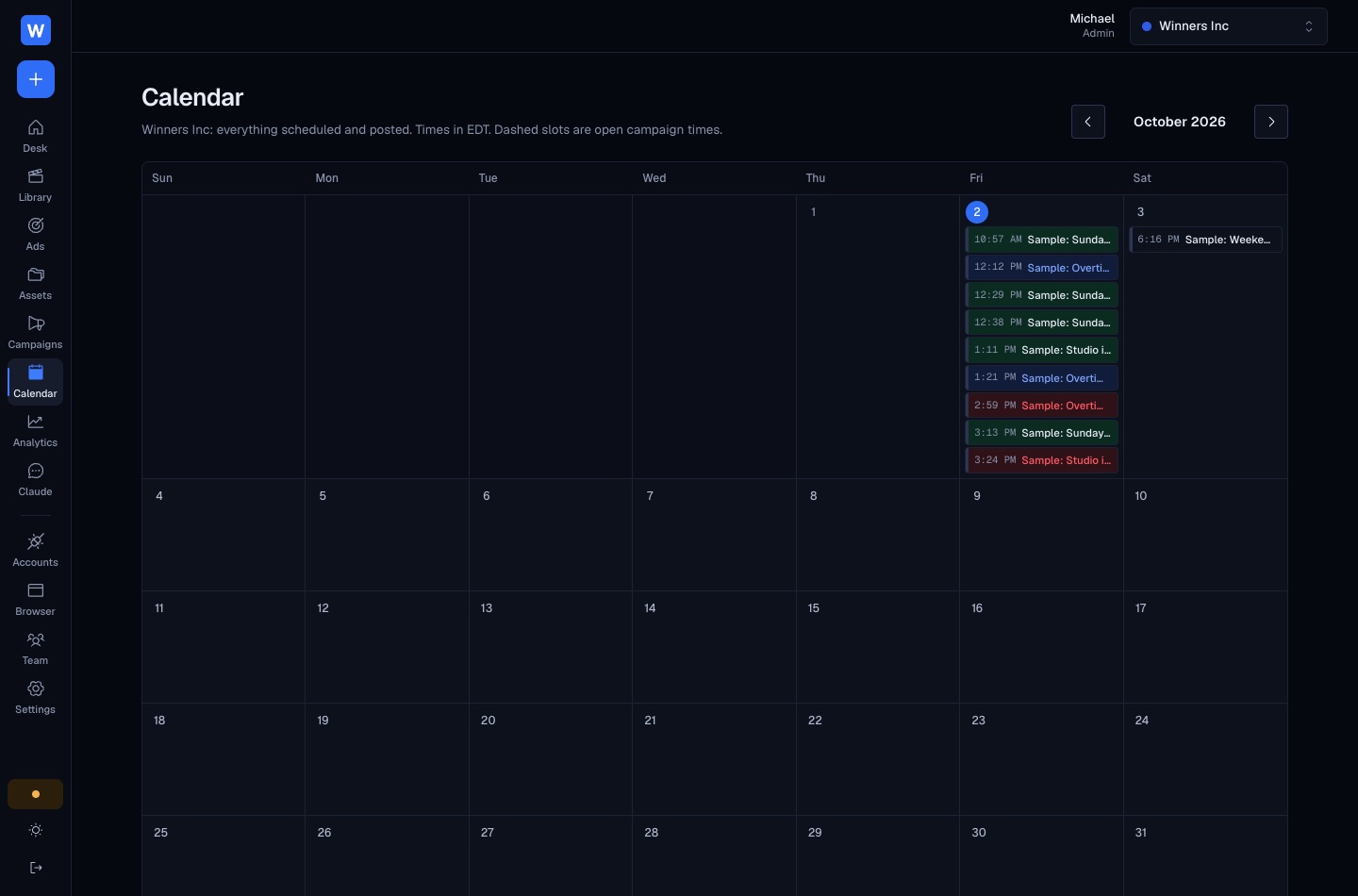
- Schedule posts for later, or set up campaigns that post on a fixed schedule automatically
Track
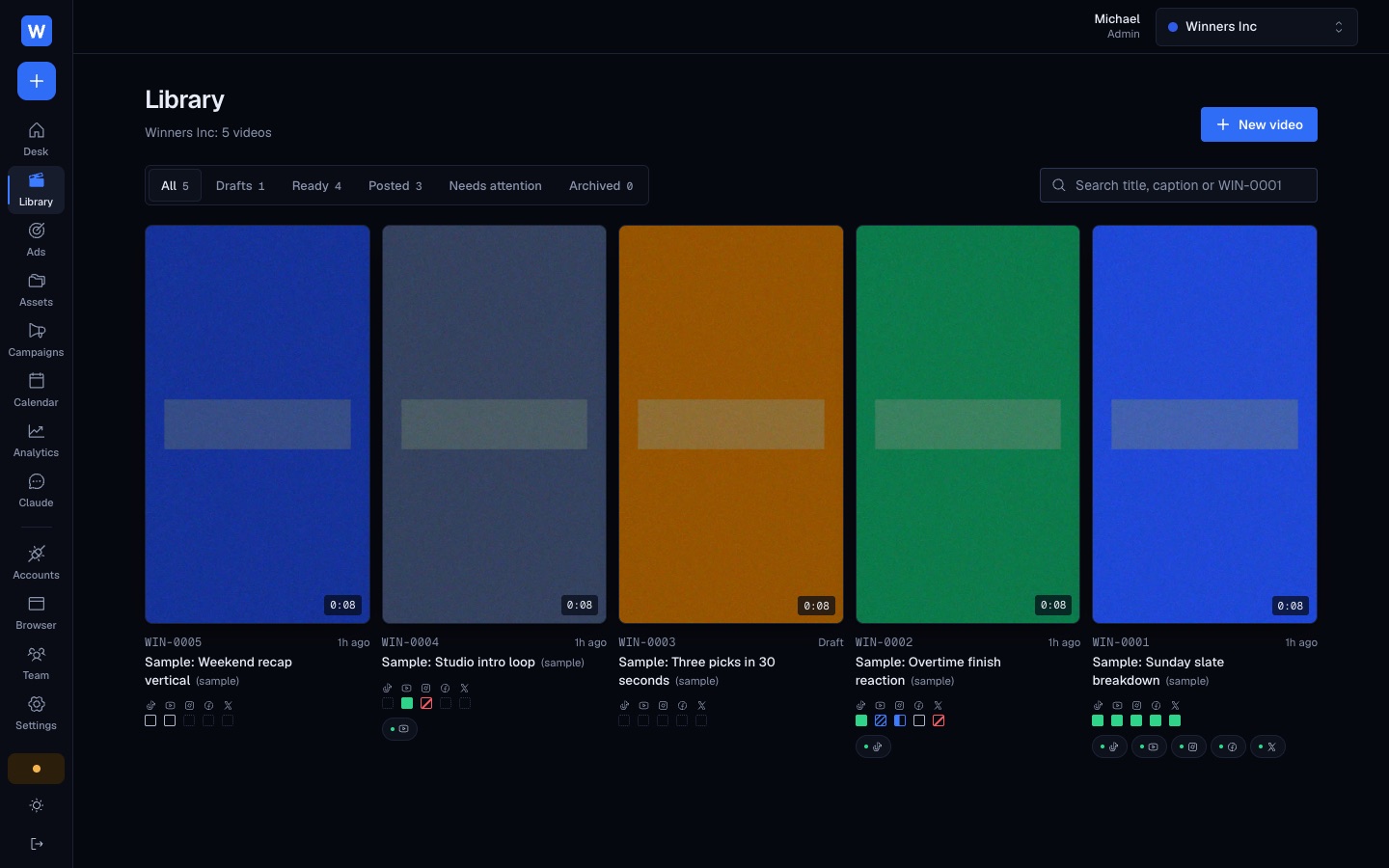
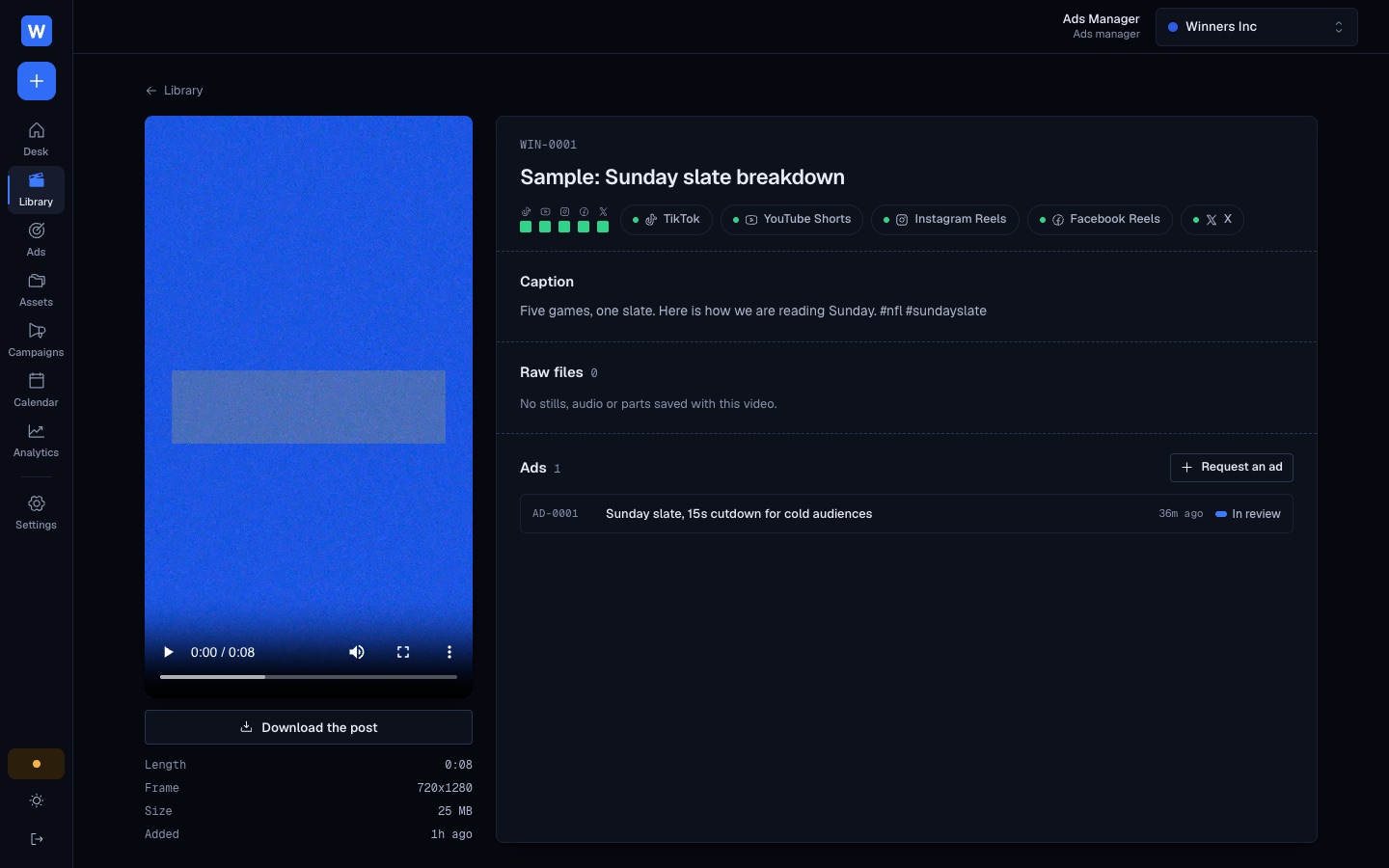
- Every video gets an ID (WIN-0001) and a status per platform: queued, uploading, processing, live or failed
- Failures show the platform's own error, with Retry
- Links to each live post, a calendar of what posts when, and analytics per platform
Ads new in v2
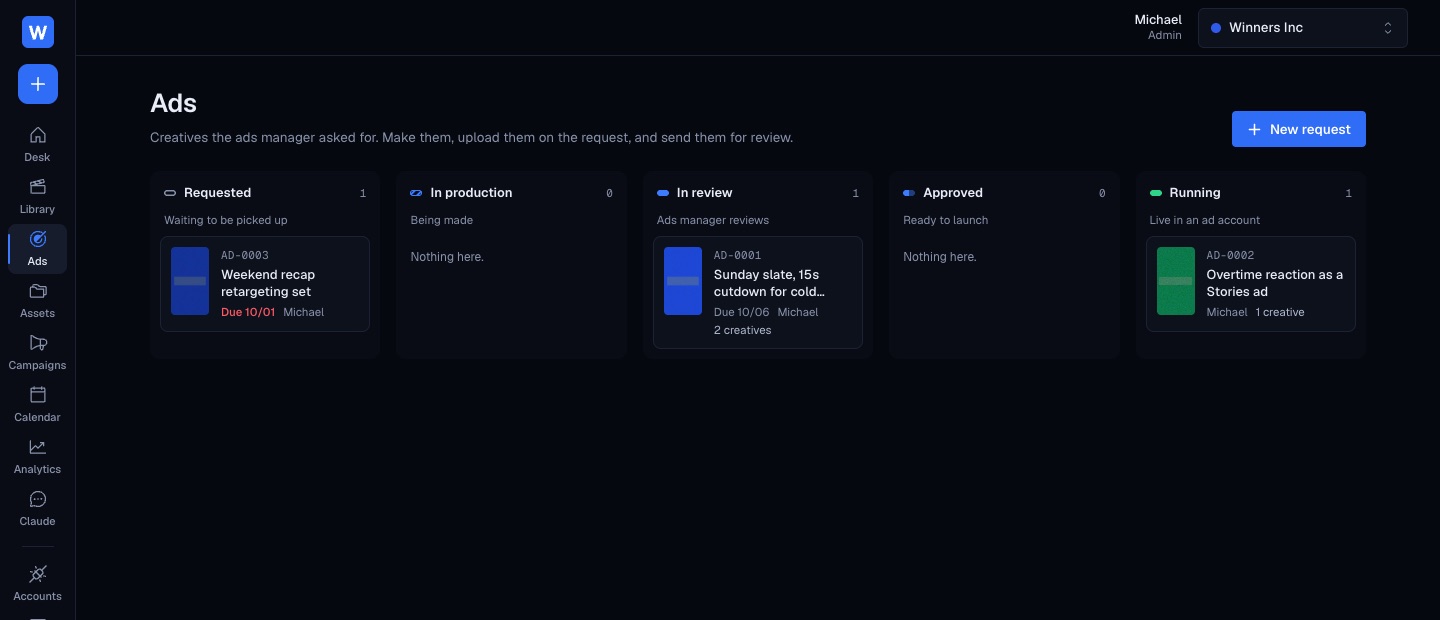
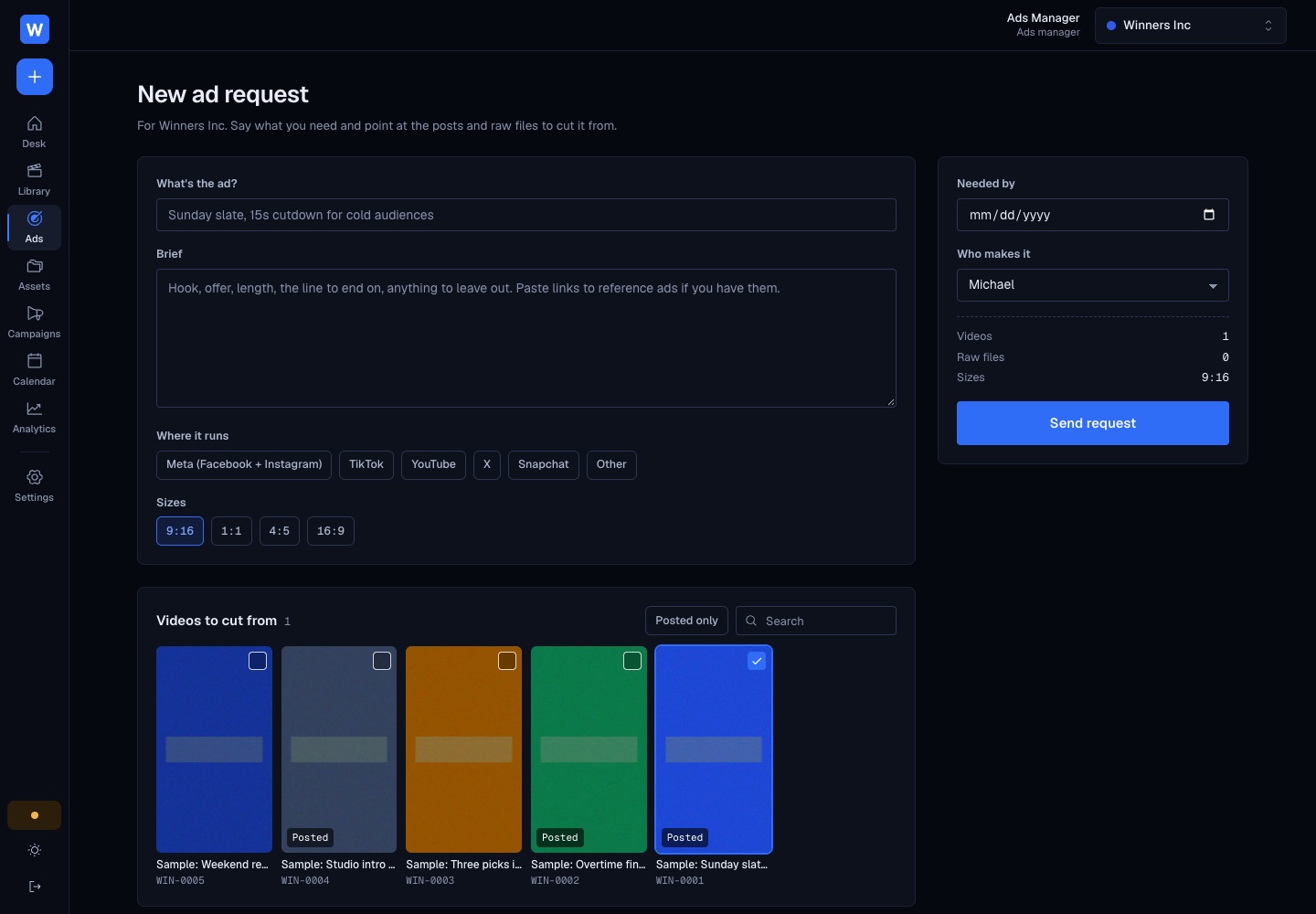
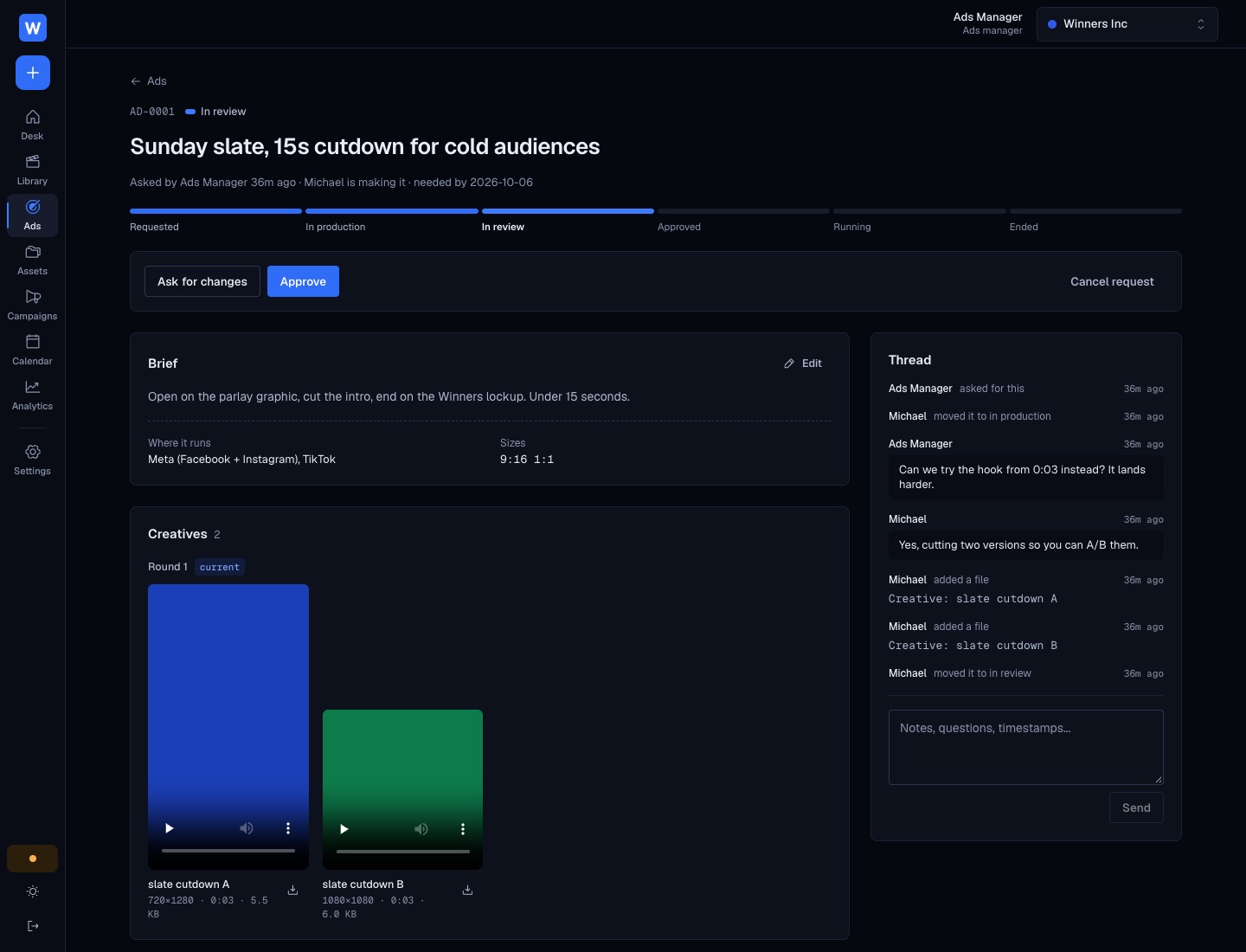
- The ads manager requests ad creatives cut from posted videos and raw files
- Draxx makes them and uploads them on the request
- The ads manager reviews, asks for changes, approves, launches and closes out each ad
- Each request keeps its own thread of messages, files and status changes
Run the team
- Three roles: Admin, Editor, Ads manager new
- Several brands on one dashboard (Winners Inc, VaulterX), each posting through its own accounts
- Ask Claude about the library, captions and the schedule; anything that posts waits for your approval
Flow 1: from a video to live on five platforms
Flow 2: the ads manager's request, start to finish
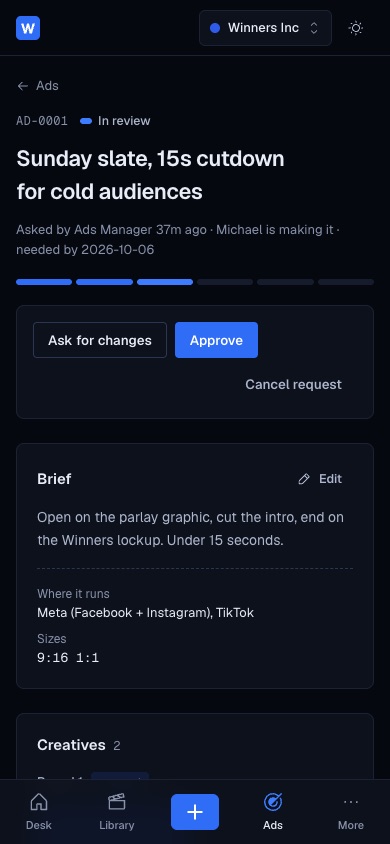
The ads manager works from what's already been made and posted. He asks for an ad, Draxx makes it, he reviews it in the app, then runs it in the ad account. Every request moves through the same six stages, shown everywhere with the same status bar.
Asking for changes requires a note and sends the request back to production as round 2. Earlier rounds stay on the page, so nobody loses a version. Any open request can be canceled and later reopened.
Who can do what
| Admin | Editor | Ads manager | |
|---|---|---|---|
| See every video, post, calendar and analytics | Yes | Yes | Yes |
| Download videos and raw files | Yes | Yes | Yes |
| Request, review, approve and launch ads | Yes | Can request | Yes |
| Make and upload ad creatives | Yes | Yes | No, references only |
| Add videos, edit captions, post, retry | Yes | Yes | No |
| Use the Claude assistant | Yes | Yes | No |
| Connect accounts, manage the team and keys | Yes | No | No |
The server enforces these limits, not just the screens. If the ads manager tries to post, retry or edit a caption, the server refuses.
On a phone
The board folds into one card per video, with the six status bars in a strip under the title. A tab bar along the bottom keeps Desk, Library, New and Ads one tap away.
What's next
Deploy the new screens
Draxx redeploys on Vercel (one click on the blocked deployment) so the team sees v2.
Give the ads manager an account
Team → Add a teammate → role "Ads manager". He gets a password to sign in with.
Who gets new requests
New requests go to the first admin on the account. If that isn't Draxx, each request can be reassigned, or we can add a setting for the default.
Ad results on the request
Record spend and results when an ad ends, so the team can see which posts made the best ads.
Notifications
A message to Draxx when a request comes in, and to the ads manager when creatives are ready for review.
Request an ad from the Desk
Already there as the "+ Ad" cell on each row. A next step could suggest which recent posts to turn into ads.
The "Possible next step" items are ideas, not built. Every screen in this report was captured from the app running on sample data.